
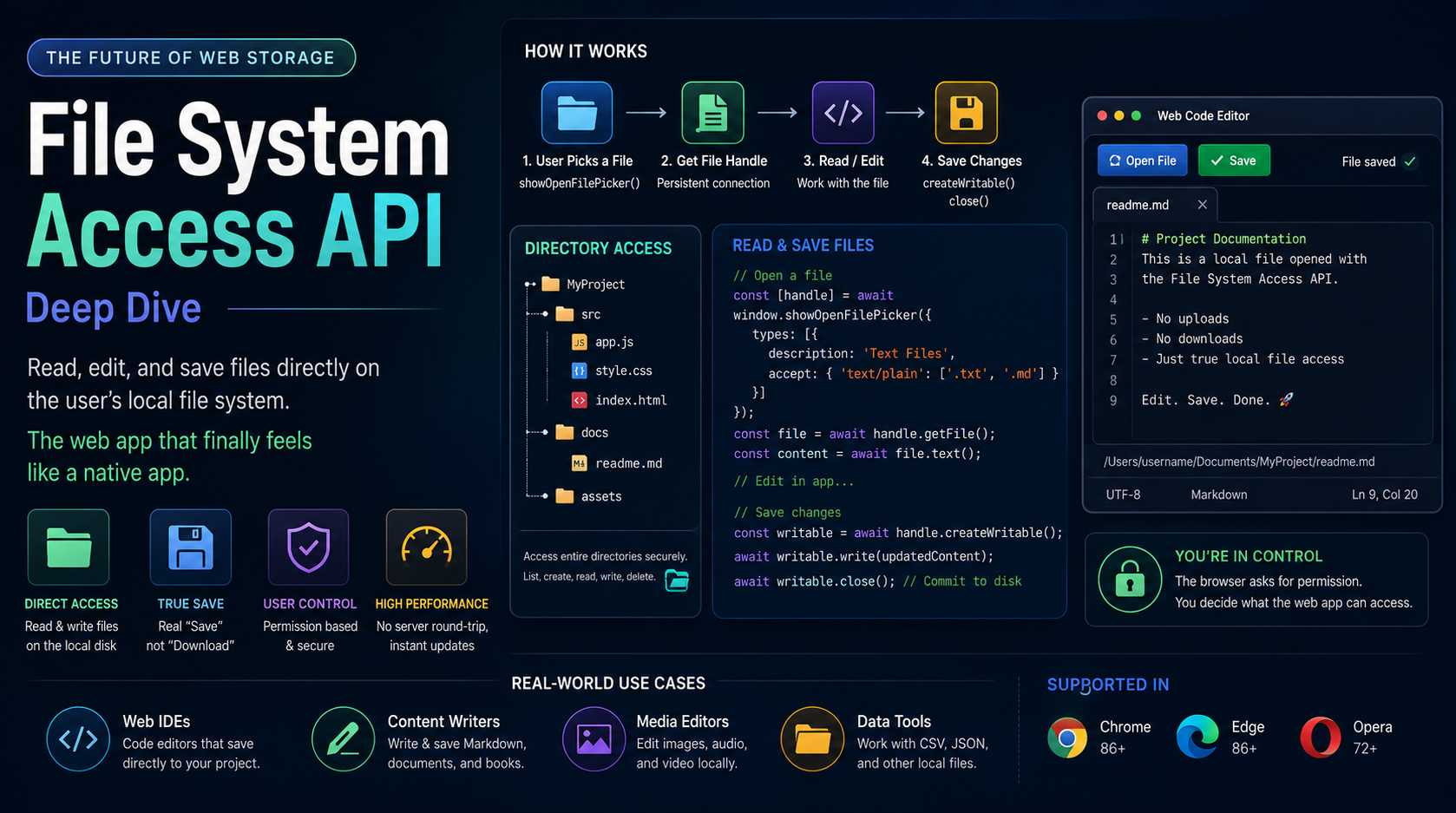
The Future of Web Storage: File System Access API Deep Dive
Breaking Out of the Browser Sandbox
For the entire history of the web, the browser has operated under a strict security model: web pages live inside a sandbox. They cannot touch the user’s local operating system or file structure. If a user wanted to edit a local file using a web application, the workflow was inherently clunky. They had to upload the file to a server via an <input type="file">, wait for the server to process it, and then download the modified version. There was no true “Save” button—only “Download as…”.
This limitation kept web applications subordinate to native desktop applications. A web-based text editor or image manipulator could never offer the seamless Ctrl+S experience of Microsoft Word or Adobe Photoshop. But the web platform is aggressively closing this gap. The introduction of the File System Access API completely upends this paradigm.
This modern browser API allows web applications to read, edit, and save changes directly to files and directories on the user’s local hard drive. With explicit user permission, a web app can now operate just like a native desktop app. This deep dive will explore how the File System Access API works, how to implement its file pickers, how to write back to the disk, and the critical security implications of breaking out of the sandbox.
Reading Files: The showOpenFilePicker Method
The journey begins with requesting access to a file. Unlike the traditional <input type="file"> which just dumps the file contents into memory, the File System Access API returns a FileHandle. This handle represents an active, persistent connection to the file on the user’s disk.
To request a file handle, we use the window.showOpenFilePicker() method. Because this action accesses the local file system, it must be triggered by a direct user interaction, such as a button click, to prevent malicious scripts from opening file dialogs autonomously.
let fileHandle;

document.getElementById('open-btn').addEventListener('click', async () => {
    try {
        // Show the native OS file picker
        const [handle] = await window.showOpenFilePicker({
            types: [
                {
                    description: 'Text Files',
                    accept: { 'text/plain': ['.txt', '.md'] }
                }
            ],
            excludeAcceptAllOption: true,
            multiple: false
        });

        fileHandle = handle;

        // Get the actual File object to read the contents
        const file = await fileHandle.getFile();
        const contents = await file.text();

        document.getElementById('editor').value = contents;
        console.log(`Opened file: ${file.name}`);

    } catch (error) {
        // The user cancelled the prompt or permission was denied
        console.error("File selection failed:", error);
    }
});
In this example, the browser invokes the native operating system file picker (e.g., Windows Explorer or macOS Finder). We can strictly filter the allowed file types. Once the user selects a file, we receive an array of handles (we destructured the first one). Calling getFile() on the handle gives us a standard File object (which inherits from Blob), allowing us to read the text contents and populate our web editor.
The crucial difference here is that we retain the fileHandle variable. The web app now knows exactly where this file lives on the local disk.
Saving Changes: Writing Back to the Disk
Because we retained the fileHandle, implementing a true “Save” feature is remarkably straightforward. We do not need to prompt the user to download a new file; we can overwrite the existing file silently, just like a native desktop application.
To write data, we must create a FileSystemWritableFileStream from our handle. This stream allows us to write chunks of data, pipe data from other streams, and ultimately commit the changes to the disk.
document.getElementById('save-btn').addEventListener('click', async () => {
    if (!fileHandle) {
        alert("No file is currently open!");
        return;
    }

    try {
        // Request write permission and create a writable stream
        const writable = await fileHandle.createWritable();

        // Get the updated content from the textarea
        const updatedContent = document.getElementById('editor').value;

        // Write the data to the stream
        await writable.write(updatedContent);

        // Close the file to commit the changes to disk
        await writable.close();

        console.log("File saved successfully!");
    } catch (error) {
        console.error("Save failed:", error);
    }
});
When createWritable() is called for the very first time on a file, the browser will likely intercept the action and show a security prompt to the user: “Allow this site to save changes to [filename]?”. Once the user grants permission, the write stream is created. The data is written to a temporary file, and only when writable.close() is called does the browser atomically replace the original file with the new data, ensuring no data corruption occurs if the process is interrupted.
Directory Access and Real-World Applications
The API doesn’t stop at single files. Through window.showDirectoryPicker(), an application can request access to an entire local folder. This returns a FileSystemDirectoryHandle, which acts as an async iterator. You can loop through all the files and subdirectories within that folder, read them, edit them, and even create new files directly within the local directory structure.
This capability unlocks entirely new categories of web applications. We can now build web-based IDEs (like VS Code for the Web) that operate directly on a developer’s local source code. We can build robust video editors that read massive raw video files locally, process them in WebAssembly, and write the rendered output back to the disk without ever uploading gigabytes of data to a cloud server. It brings the power of native I/O to the accessibility and zero-install deployment of the web.
Security and Permissions Architecture
Giving web pages access to the local file system is inherently dangerous. A malicious script could silently read sensitive documents or overwrite critical system files. To mitigate this, the File System Access API is built on a foundation of strict security protocols.
First, the API is only available in Secure Contexts (HTTPS). Second, it requires Transient Activation—meaning file pickers can only be opened immediately following a user gesture, like a click or keypress. Third, the browser enforces Blocklists. The API simply will not allow access to sensitive system directories (like `C:\Windows` or `/System`), or the user’s entire home directory. If a user tries to select one, the browser throws an error.
Most importantly, the file handles are generally ephemeral. If the user refreshes the page or closes the tab, the handles are lost, and the application must request them again. While handles can be serialized and stored in IndexedDB for later use, the browser will always require the user to re-verify permission before allowing a read or write operation on a restored handle. The user remains in absolute control of their local data.
For developers exploring how to push the boundaries of modern HTML, consider reading about Server-Rendering Web Components with Declarative Shadow DOM, or see how to build Accessible Modals using the Native Dialog Element.
For a deeper technical reference, please consult the W3C File System Access API specification.
Conclusion
The File System Access API represents a massive paradigm shift in web capabilities. By securely breaking down the wall between the browser sandbox and the local operating system, it allows web developers to build true progressive web apps (PWAs) that are indistinguishable from native desktop software.
While developers must respect the security prompts and handle permission states gracefully, the ability to seamlessly read, edit, and save local files directly from JavaScript fundamentally changes what is possible on the web. As support continues to grow across modern browsers, the days of relying on clunky upload/download cycles for local file manipulation are finally coming to an end.
editor's pick
latest video

news via inbox
Nulla turp dis cursus. Integer liberos euismod pretium faucibua